Pragmata PC Settings Guide: How to Maximize Frames Without Frying Your Rig
The Moon might be actively trying to put you 6 feet under, but your graphics card does not have to suffer the same fate.
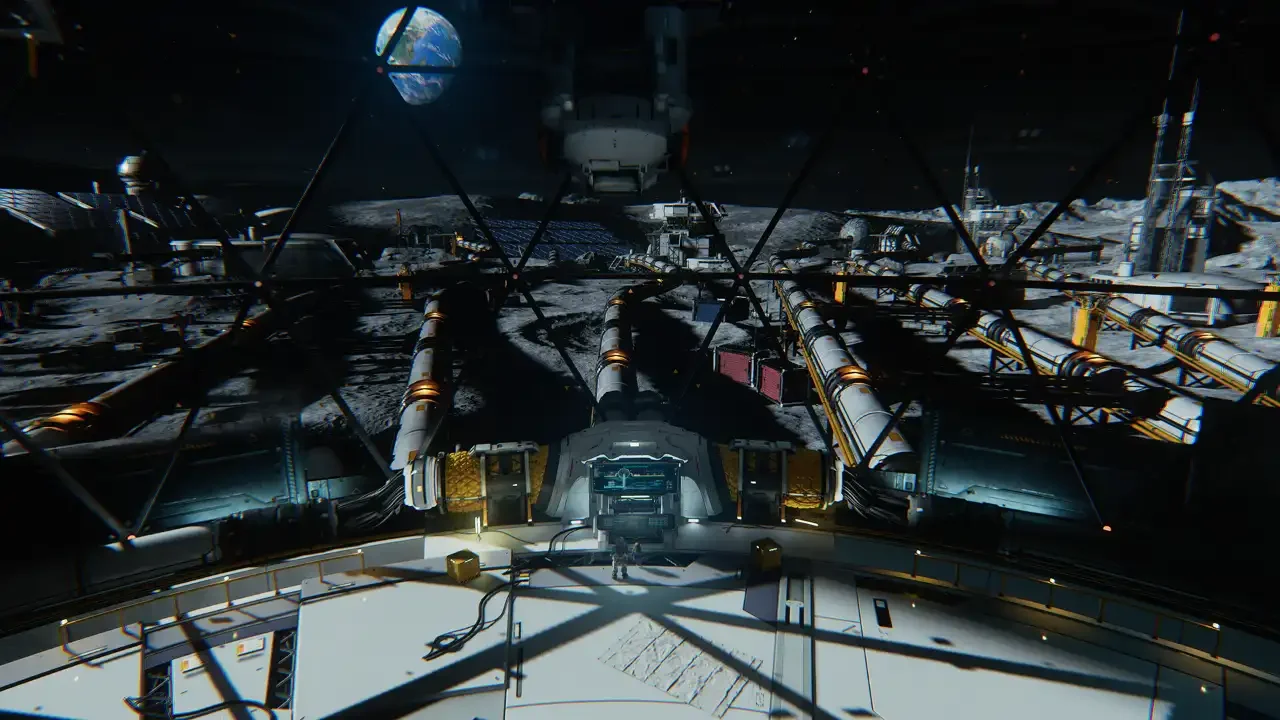
Capcom somehow managed to release a PC game in 2026 that actually works flawlessly on launch day. It is a modern miracle. Because Pragmata is built on the notoriously reliable RE Engine, the game scales incredibly well across a massive variety of hardware. You do not need a supercomputer to make the Cradle look visually stunning.
And to be fair, this is not a one-off either. Resident Evil Requiem earlier this year was also impressively well-optimized, showing that Capcom’s PC ports are consistently hitting a high standard lately.
If you are running a budget rig from five years ago, you can still easily pull a stable framerate. If you have an absolute monster of a machine, the engine gives you enough graphical headroom to stretch those expensive GPU legs.
Now before you waste your entire evening meticulously adjusting every single slider and running in circles looking at puddles, let me give you the shortcut. I have tested the heaviest combat zones and the most demanding lighting areas to find the absolute sweet spot. Here is exactly what you need to toggle to keep the game looking gorgeous while maintaining the smooth performance you need for high speed hacking.
The Ray Tracing Trap
Pragmata takes place on a massive lunar base filled with glass, polished metal, and neon lights. It is basically a tech demo for reflections. The game gives you two main options for advanced lighting, and one of them is an absolute trap.
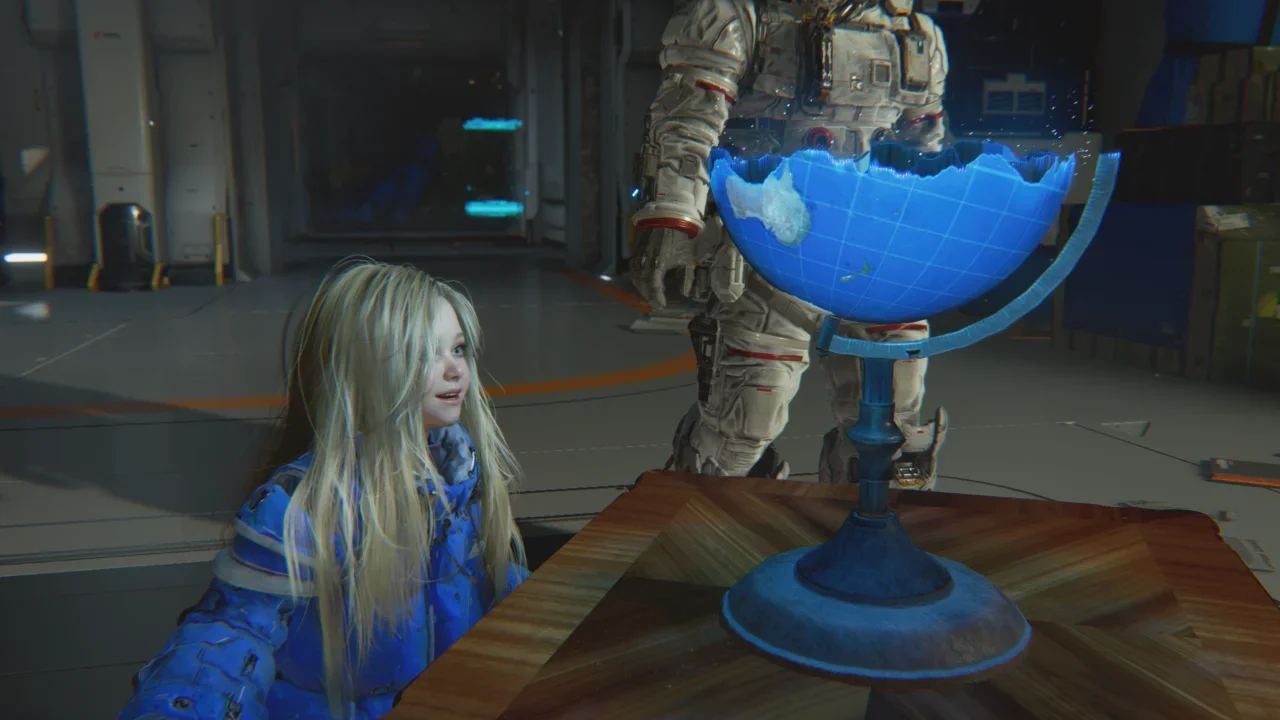
Standard Ray Tracing handles global illumination and reflections. If your card supports it, you should absolutely leave it on. It makes a massive difference in the combat arenas. However, it is not perfect. When you are hanging out in the Shelter, the standard ray tracing interacts poorly with the dark metallic floors. It creates a weird, static visual noise that looks like rain hitting the ground. It is a minor annoyance, but the visual upgrade everywhere else in the game makes it worth the tradeoff.
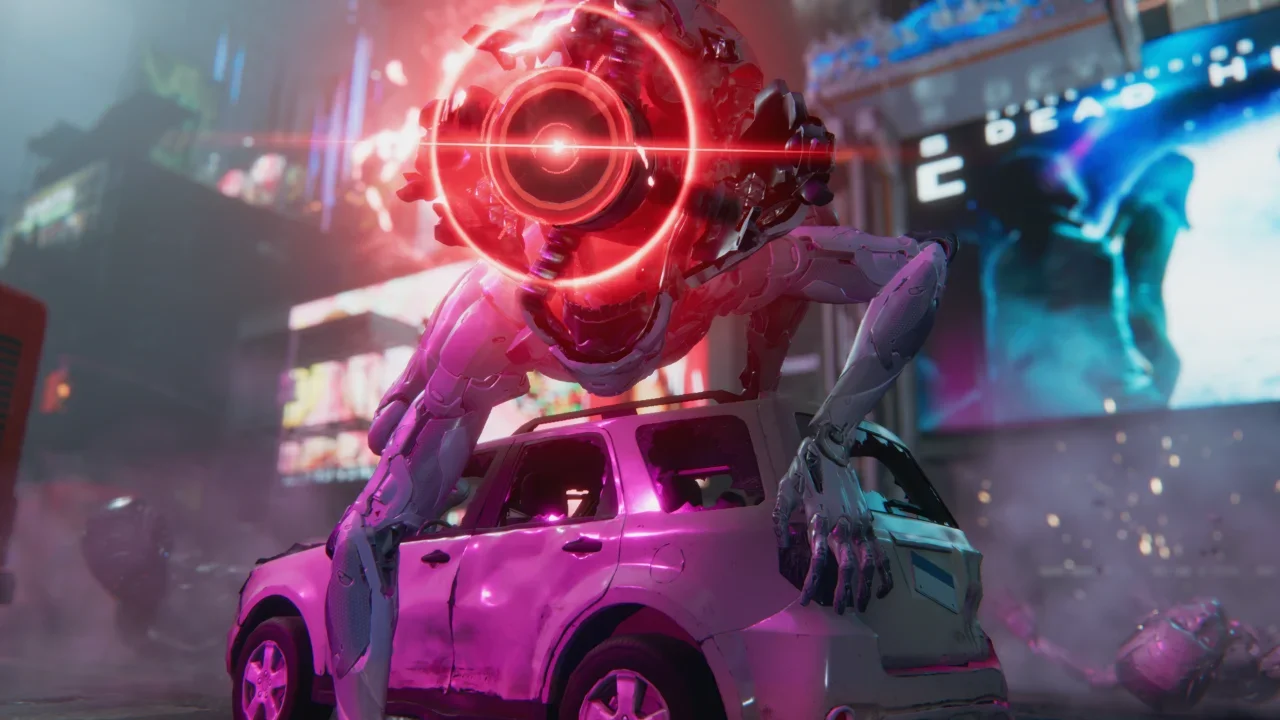
Path Tracing, on the other hand, is a complete frame killer. It entirely replaces the rasterized lighting engine. Yes, it looks incredible in still screenshots. But in motion? It will chop your framerate into pieces. Unless you are running an absolute top tier card and rely heavily on DLSS Performance mode, leave Path Tracing turned off. You need smooth frames to dodge massive robotic fists, and Path Tracing will get you killed.
Optimized Settings for the Cradle
If you just want to punch in the numbers and get back to shooting, I have compiled the optimal baseline settings below. Start with the "Balanced" preset in your menu, and then manually adjust these specific options.
Breaking Down the Biggest Frame Killers
If you applied the settings above and are still experiencing stuttering during heavy firefights, you need to look at a few highly specific background processes.
Upscaling is Mandatory for Ray Tracing
If you are running the game at 1440p or 4K with Ray Tracing enabled, you cannot rely on native rendering. You must utilize either NVIDIA DLSS or AMD FSR. Set your preferred upscaler to the "Quality" preset. The RE Engine implementation is fantastic. It eliminates the jagged edges, drastically boosts your framerate, and the visual artifacting is virtually nonexistent. If your rig supports Frame Generation, turn it on. It works smoothly without introducing the nasty input lag you see in poorly optimized titles.
Subsurface Scattering is a Waste
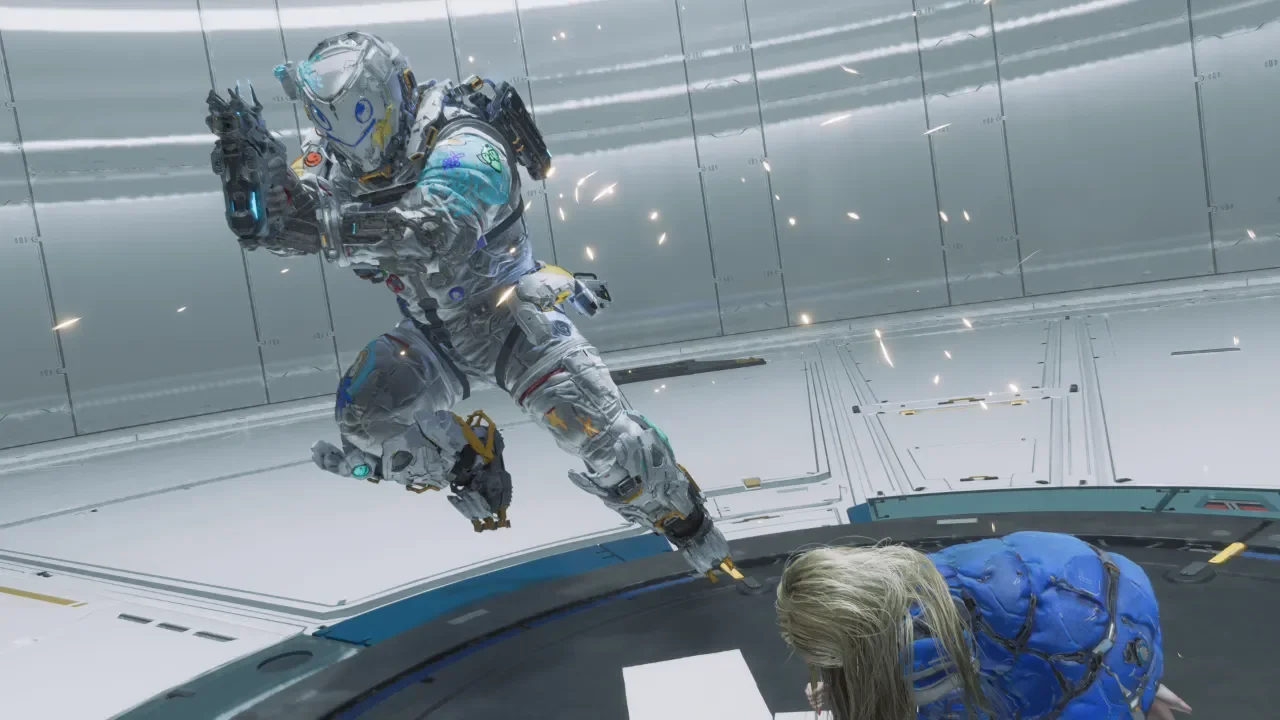
This is a rendering technique used to make human skin look more realistic when light hits it. It was incredibly important in the Resident Evil games because you spent all your time staring at human faces in dark rooms. In Pragmata, the only face it really impacts is Diana. Considering you spend ninety percent of the game looking at the back of her head while she rides on your shoulders, this setting is a complete waste of processing power. Turn it off immediately.
Disable the Cinematic Fluff
Post processing effects like Motion Blur, Lens Flare, and Depth of Field exist entirely to make video games feel like movies. I despise them. Motion blur actively hinders your ability to read telegraphs during fast paced combat. Depth of Field blurs the background when you aim, which makes tracking secondary targets significantly harder. Turn all of these off. Not only will you get a cleaner, sharper image, but you will scrape back a few extra frames in the process.
Once you have your game running smoothly, you can finally focus on the actual mechanics. If you need help figuring out which upgrades to buy first, check out my Best Early Loadouts and Upgrades Guide. And if you are still trying to wrap your head around the digital maze puzzles, my Hacking Masterclass will sort you out.
For more deep dives into everything the game has to offer, browse our complete Pragmata Hub.